
Spruce up your LGL forms with Enhanced Themes
This new feature can be enabled in your LGL Forms area, in Design > Themes.
In this article:
- Overview
- Building forms using an enhanced theme
- Multi-step versus single-page forms
- Enhanced themes: Simple improved styling with controls in one location
- What if you have existing (legacy) forms and themes?
Overview
With the addition of Enhanced Themes to LGL Forms, you can build more modern-looking forms that include a multi-step online donation widget, use suggested donation amount buttons, and fit more easily on your website or on a mobile device.
Improved styling options are available, including better choices for fonts and better and more options for how much room the form takes up on a screen. You can set a form to fully fill the available space, and images are resizable, so an image header can be resized automatically based on the device it’s being viewed on.
All of these enhancements mean your forms look better, are easier to configure, and the result is a more consistent look overall.
With this recent update, you can create an online giving form like the one shown to the right, embedded in this example webpage (only the form itself can be built using LGL Forms):

More details about these enhancements to LGL Forms and how to use them can be found in the article sections below.
Building forms using an enhanced theme
When you’re ready to add a new form, click the Add new form button shown here:

You’ll see a popup that lets you select either a custom form, which can be either a single page or multi-step form. Or you can select a donation widget, which is quick way to generate a short multi-step form with suggested amount buttons, ideal for embedding on your website:

Custom form
When you choose the Custom form option, you can use either a legacy theme or a new enhanced theme. If you have not created any enhanced themes, you can choose the “Enhanced Default” option, as shown here:

This theme is a good place to start, because it gives you the option to build a multi-step form, if desired, and to use the new styling options, like the suggested amount buttons shown below:

Note also that you can change the theme at any time, which makes it easy to start with the default theme and then update to a custom theme later, if desired.
Multi-step versus single-page forms
Forms using enhanced themes can be either single-page or multi-step forms.
Multi-step forms allow you to break up the fields in your form into several steps. For example, in Step 1, the donor selects their donation amount; in Step 2 the donor inputs their name and email address. In an optional Step 3, you can ask for address, phone number, and other data.
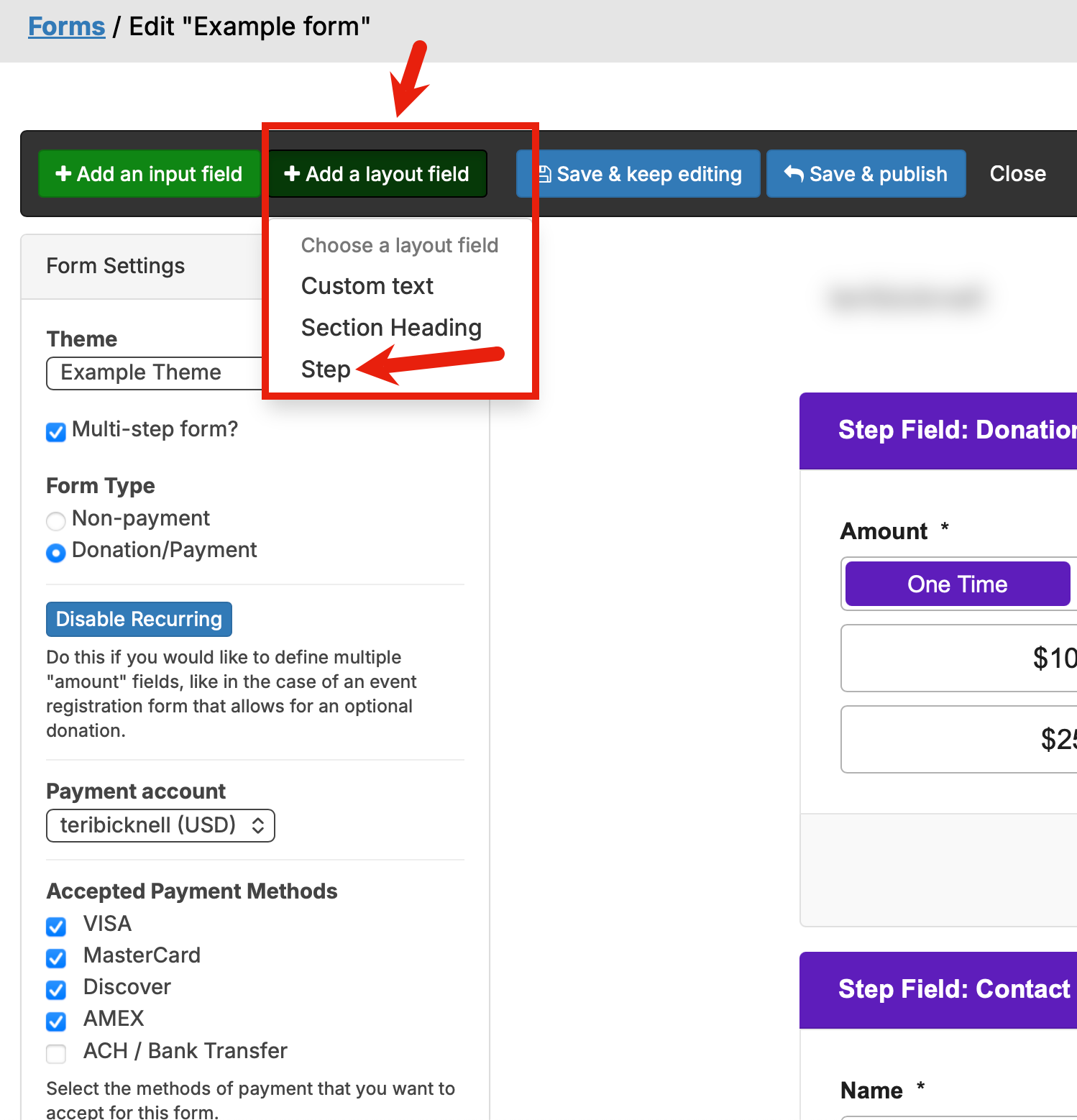
To add a step, click the Add a layout field button, and select the Step option. You can then click the Re-order fields button to the top right to drag and drop the step break into the order you want it to appear in the form.
Donation widget
When you choose the Donation widget option, a pre-built form generates, offering buttons with donation amounts and multiple steps to keep the height of the form contained. All of the steps display at once as you’re creating or editing the form, but only one step at a time will be displayed in the live form. One step at a time is what your donors will see when they fill out and submit it.

Showing your amounts as buttons or a list
When you are using an “Enhanced” theme in a payment form, you will be able to use buttons as an additional option for the display of suggested amounts. You can see this in the Display As dropdown menu as you edit the Amount field:

Enhanced themes: Simple, improved styling with controls in one location
While you can use the “Enhanced Default” theme to create your form, if you want to customize its look and feel you will need to create your own enhanced theme, which you can do from the Design > Themes page.
To create a new enhanced theme, select the “Enhanced theme” radio button, type the name of your new theme in the provided field, and click the Create theme button:

The improved styling options (including better choices for fonts, a simpler process for customizations, and the ability to paste in your choice of hexadecimal color codes), will be available on the right (shown in the red box below). As you’re selecting your styles, the sample form in the main part of the page updates, showing you how the styles will display for your form.

The sample form that’s displayed while you edit your styles is just an example. Later you can apply your finished theme to any forms you choose.
The header tab also allows you to upload a logo image on the spot; you no longer need to go to the Design > Images area to upload your logo image for use in the header.

Images resize more efficiently and effectively in the enhanced theme builder, allowing you to set the width as a percentage so that the image will automatically resize in a mobile-responsive way. (With legacy themes, you have to set a pixel height that is static, and larger images can get cut off on mobile devices.)
Set a default enhanced theme
When you want to apply a specific enhanced theme to any new form that is created in your account, navigate to LGL Forms > Design > Themes and select the Default? star to the left of that theme, as shown here:

Any theme that is starred will then be applied by default to any new form that is created in your account.
NOTE: If you don't have Enhanced Themes enabled in your account, you will still be able to select a theme as the default but it won't be applied to new forms that are created. However, it will still be listed as the top theme on the Themes page.
What if you have existing (legacy) forms and themes?
Existing (legacy) forms and themes will continue to work as they always have. You can continue to edit them or create new ones using the legacy format for forms and themes. Or, you can change the theme selection on a legacy form so that it uses a new, enhanced theme. The improvements to LGL Forms do not interfere with legacy forms or themes. You can also choose to upgrade a legacy form so it will instead use a new, enhanced theme.
This table shows which types of forms enhanced themes and legacy themes can support.
| Type of form | Works with enhanced themes? | Works with legacy themes? |
| Donation form using buttons for amount fields |
✅ |
❌ |
| Multi-page form |
✅ |
❌ |
| All other forms |
✅ |
✅ |
Converting a legacy donation form to use buttons for Amount fields
If you have a legacy donation form that you want to update so it uses buttons for the Amount fields, you can:
1. Apply a new “enhanced” theme to that form, AND
2. Edit the Amount field in the form, click the Display as dropdown menu, and select one of the two available button options
