
Send email acknowledgments
In this article:
- Send a test email
- Attach a PDF version of your acknowledgment to the ack. email
- Preview your acknowledgment emails
- Send your email acknowledgments
- Confirm the emails were sent
If you have already created an email acknowledgment template and attached it to gifts needing to be acknowledged, your only remaining step is to test your email if you haven’t already done so, and then to queue the emails for sending. You can do both by following the steps below.
NOTE: In order to email directly from LGL, you must first enable LGL Email in your account.
Send a test email
To test your email and make sure it is ready to send (checking to see how the email looks, proofreading the text one last time, ensuring the merge field/s are working), you can send yourself or another person a test email.
NOTE: If you have reviewed your email template previously and are confident it doesn’t need to be reviewed at this time, there is no need to follow this step.
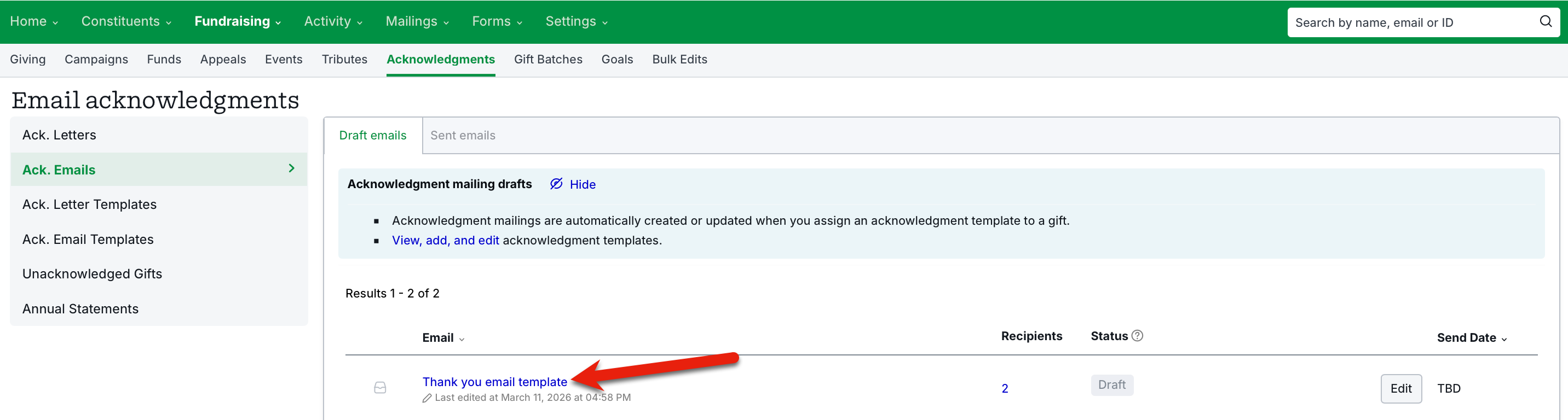
To send a test email, go to Mailings > Acknowledgments > Ack. Emails, and click on the email acknowledgment draft:
You'll be taken to the Email Summary page, where you can click the Send test email button:

Type the email address for the person who should receive the test email, and click the Send Test button.
Depending on how your email looks, you can either revise it to fix any issues or you can queue it for sending.
Attach a PDF version of your acknowledgment to the ack. email
If you would like to attach a PDF version of the acknowledgment email to the acknowledgment email itself, you will need to first turn on this setting by going to Settings > Subscription settings > Gift settings and scrolling down the page to Acknowledgment Attachments:

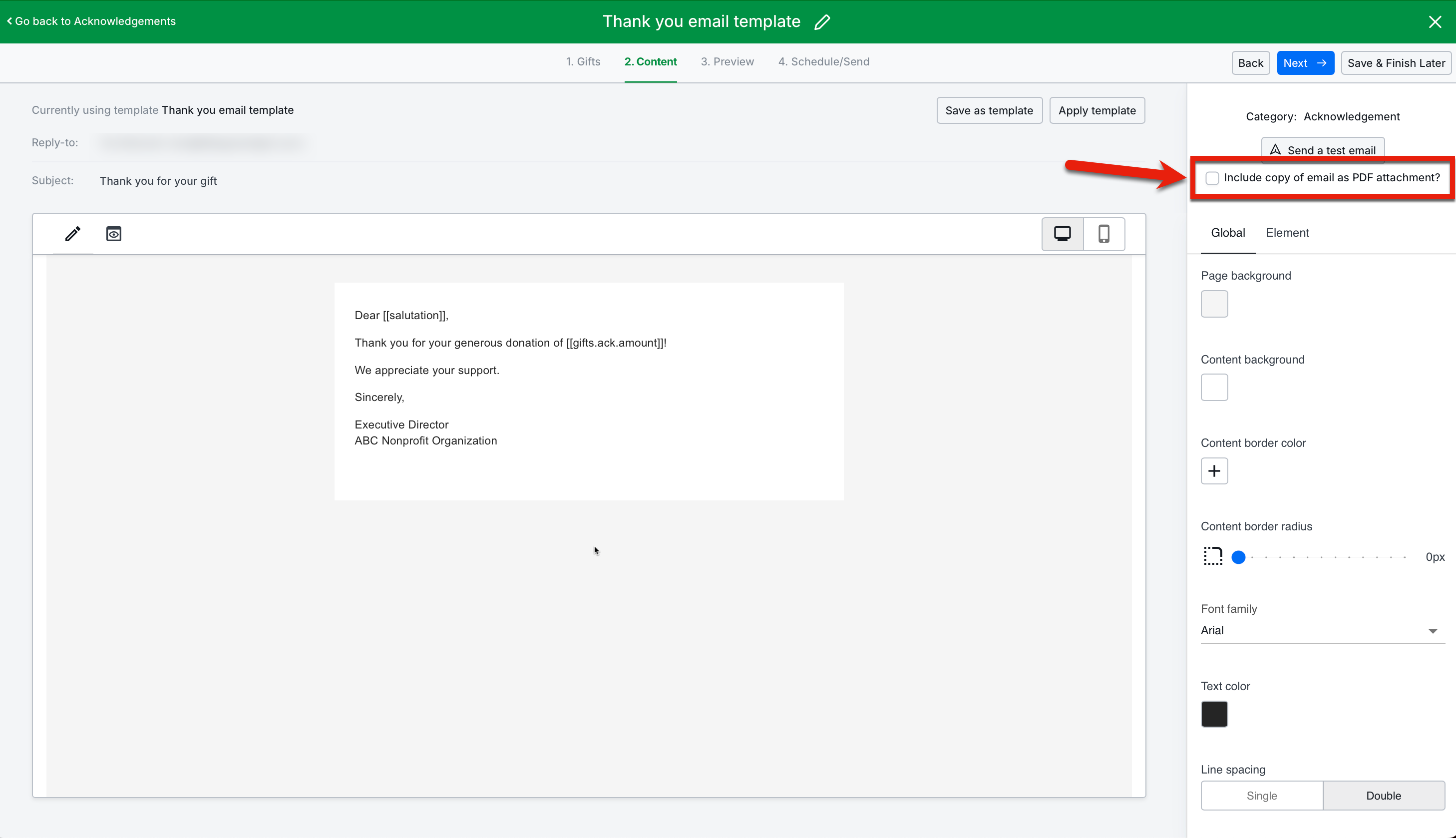
This setting does not cause a PDF version of the email to be attached to every outgoing email acknowledgment, however. To cause the PDF version to be attached to outgoing emails in the email acknowledgment, edit your email acknowledgment, navigate to the "2. Content" tab, and check the "Include copy of email as PDF attachment" box, as shown here:
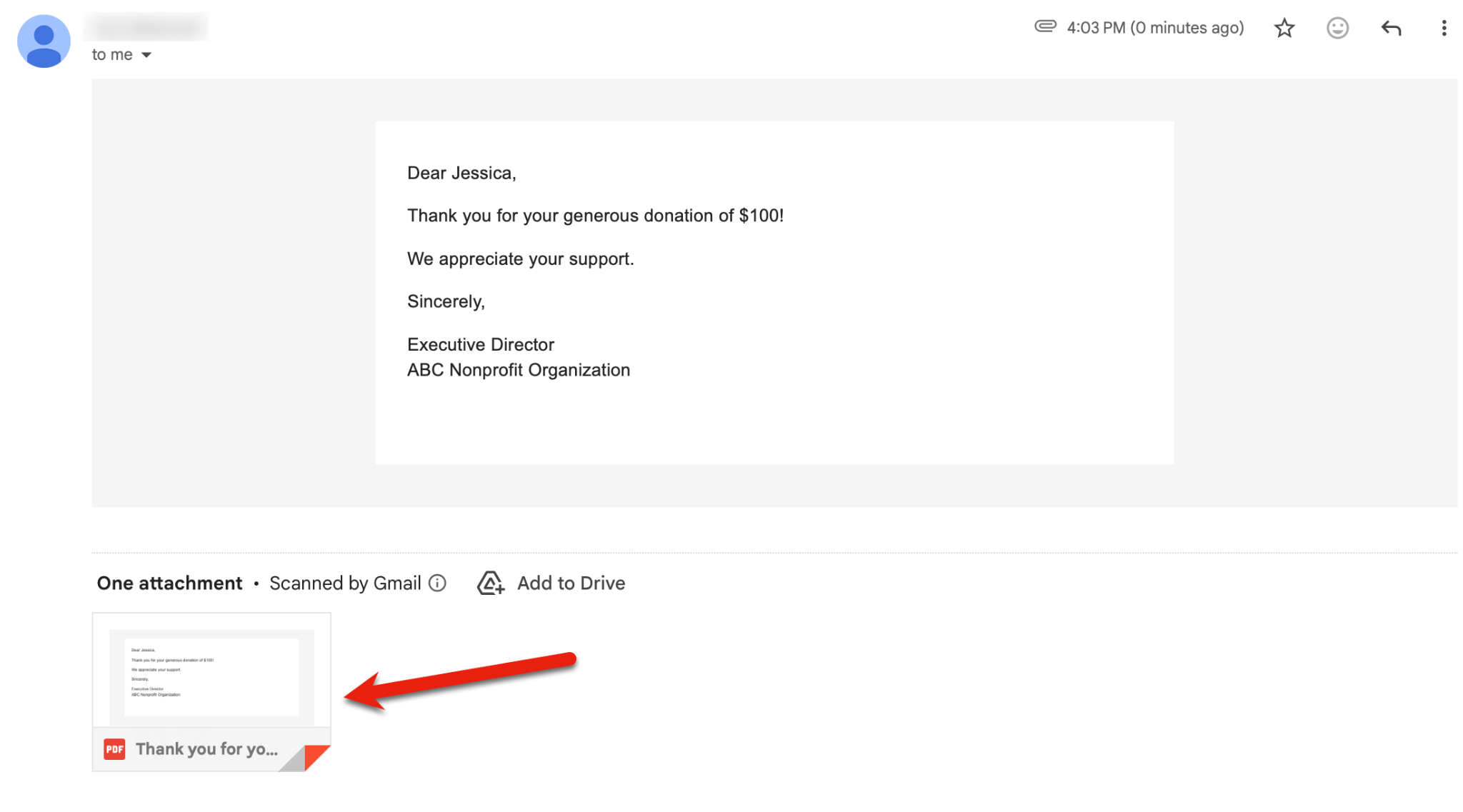
The attachment will appear in the email. Here is an example of what that looks like:
If you use the PDF attachment option and you want to include images in your email and PDF attachment, please make sure to use only images that you've uploaded to your LGL account. Images you pull in via an HTML link, for example, will not appear in the PDF attachment.
Preview your acknowledgment emails
Step 3 in the email builder gives you the option to preview your acknowledgment emails, and offers other options as well. Here you can see how your emails look before you send them.
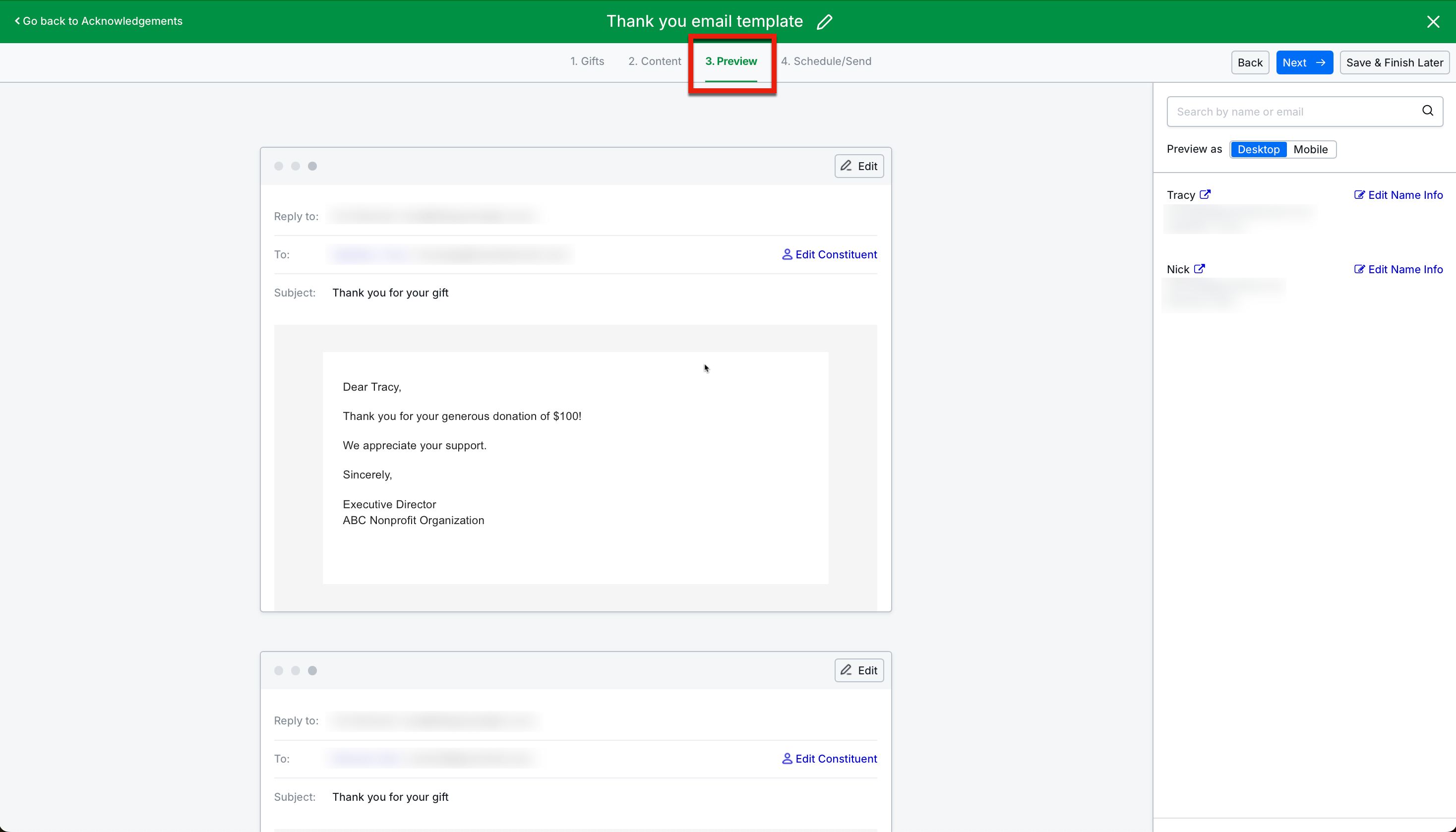
You can edit the email content for a specific email, if needed. You also have the option to edit the constituent data directly from the right column of the page, by clicking the Edit Name Info button for any of the recipients.
Send your email acknowledgments
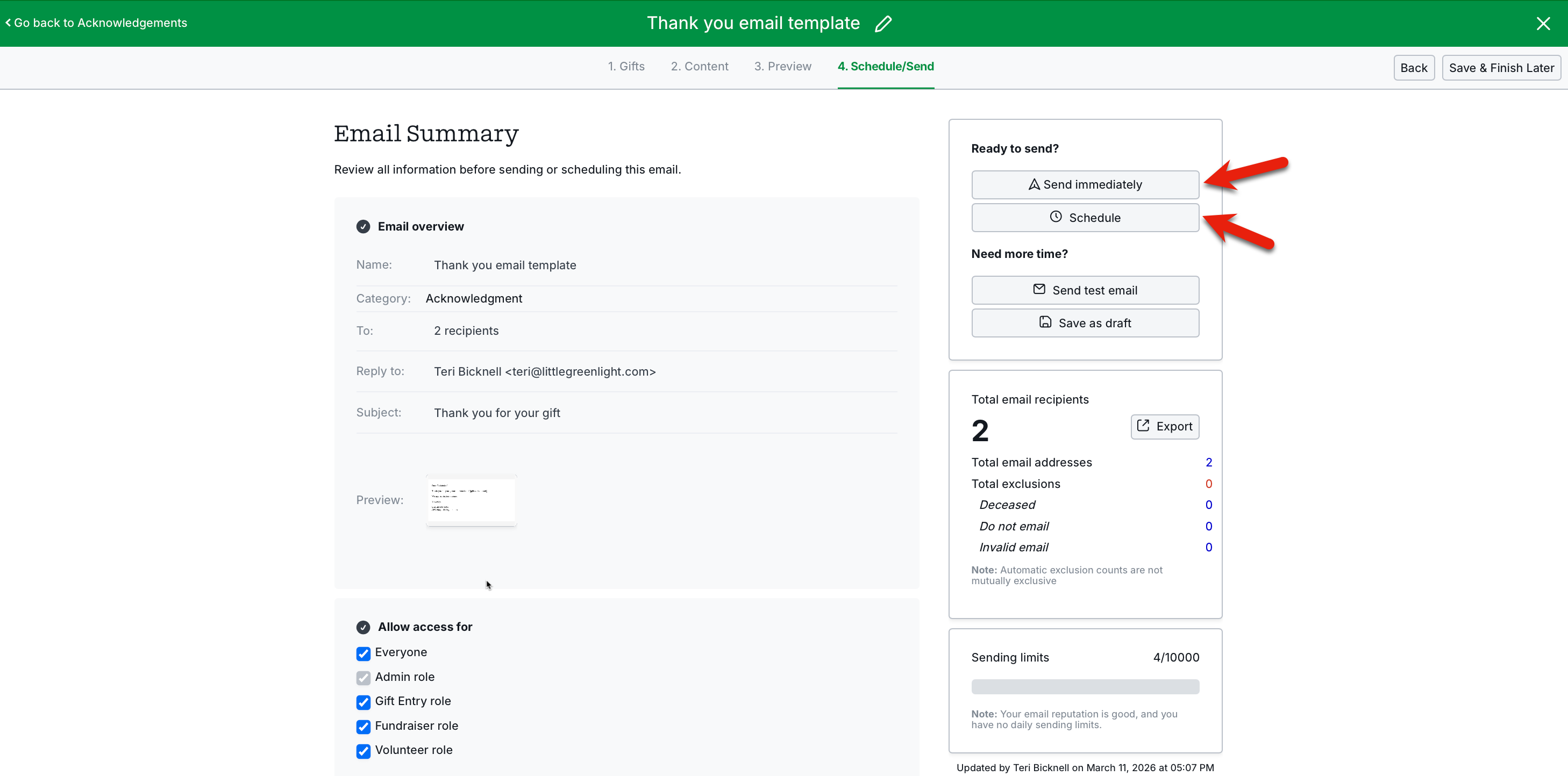
When your email acknowledgments are ready to send, navigate to the 4. Schedule/Send step of the email builder. Here you have options to send the email immediately or schedule it for up to 30 days in advance:
Sending your email acknowledgment immediately
To send your email acknowledgment right away, click the Send immediately button. You'll next need to click a confirmation Send button for the email to be sent. Then you'll see a confirmation that your email will be sent within 30 minutes. (If you clicked "Send" too soon and want to cancel the send process, you can click the Cancel delivery button to stop the email from being sent. But note that you'll need to re-initiate the send process in order for the email acknowledgment to be sent whenever you are ready for it to be sent.)
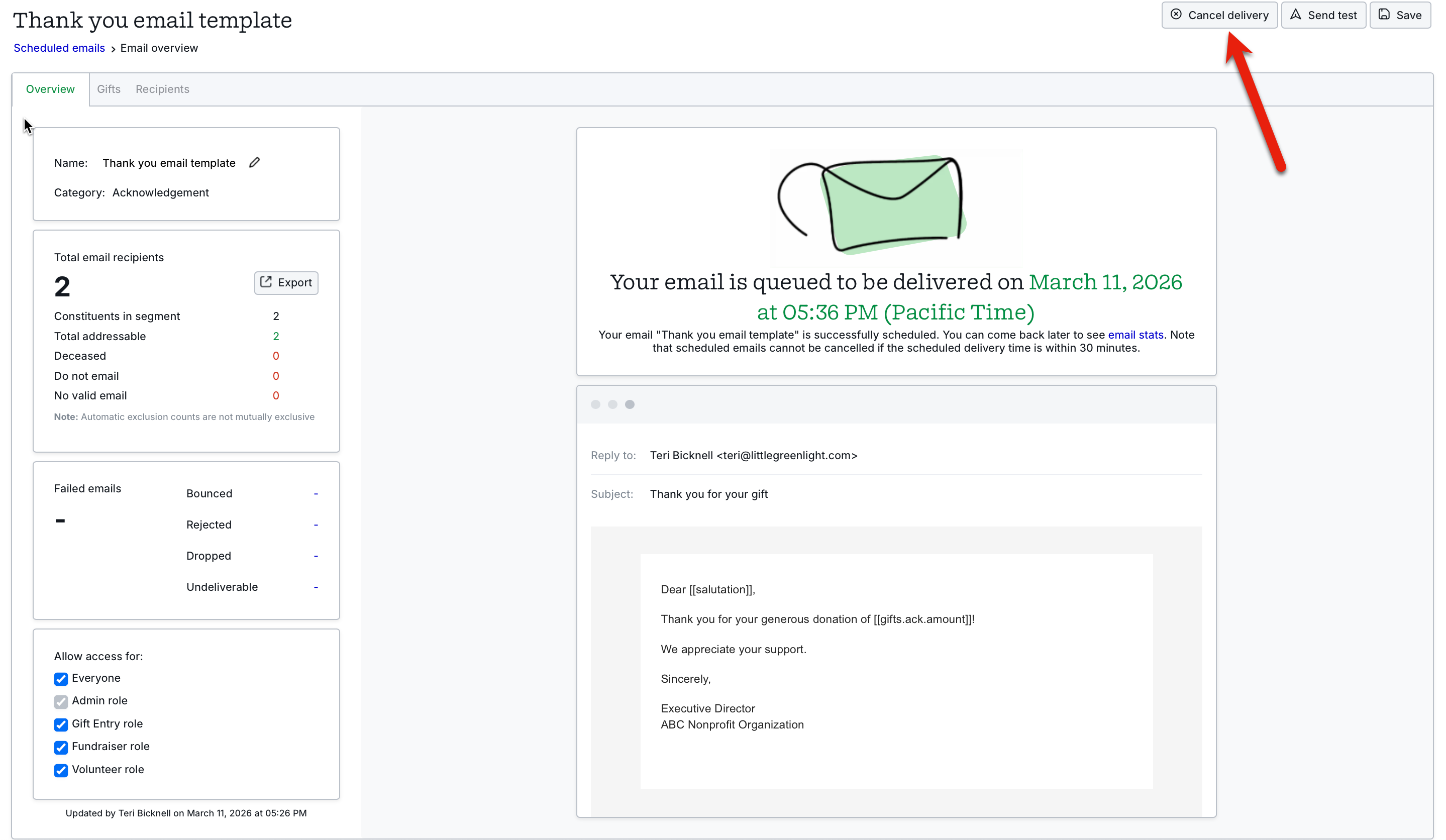
Scheduling your email acknowledgment to be sent
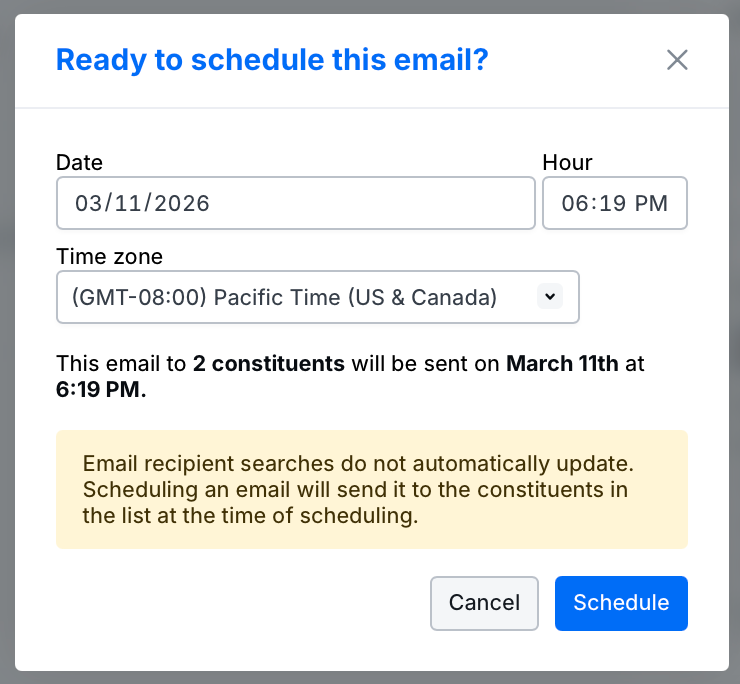
To schedule your email acknowledgment to be sent sometime within the next 30 days, click the Schedule button. Then make your selections in the popup that opens and click the Schedule button:
Confirm the emails were sent
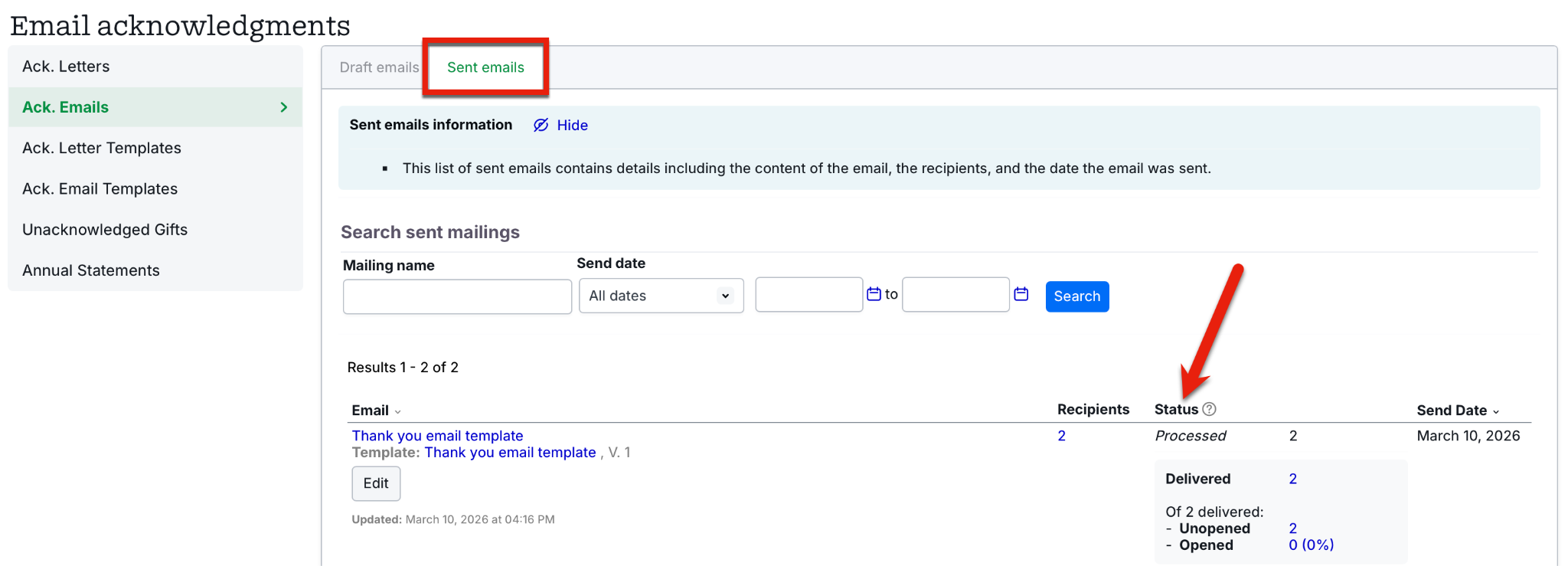
Once the email has been sent, it will be marked as processed. You can confirm this by going to Fundraising > Acknowledgments > Ack. Emails and viewing your email acknowledgment's status in the Sent emails tab:
It’s a little more of a challenge to make sure all of the emails you just sent were received due to firewalls, other security measures that may be in place for your recipients’ email addresses, and other unforeseen circumstances. The best way to check that the email system is working is to send a copy to yourself and ensure you receive it successfully.